
Bowen AI · products

One intelligence. A complete product family.

Meet the Bowen experiences that make chat, voice, research, creation, automation, and your Mac work together. Learn what each product is for and how you can move between them without losing the thread of your work.

  • Bowen workspace
  • Bowen Chat
  • Voice conversations
  • Creative studio
  • Automations
  • Research
See how every page works

01 / 12

Bowen workspace

A shared home for different kinds of work.

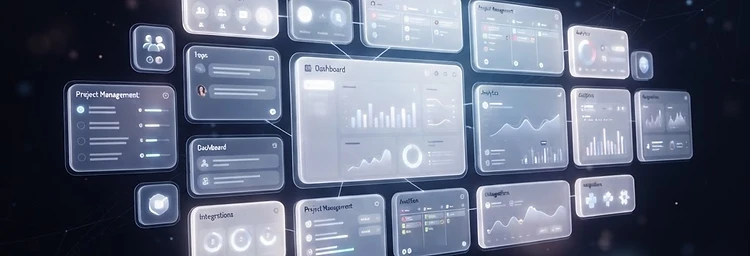
Chat, voice, research, automations, the model store, tokens and settings are accessible from the workspace navigation. Start in Chat, then move into a dedicated tool when the task needs it. The layout adapts to your screen, but access still depends on your account, plan and device. Some developer tools are intended for larger screens, so a phone is not a promise of identical functionality.

  • Connected workspace navigation
  • Responsive layouts for different screens
  • Features remain subject to account access
Explore with Bowen

02 / 12

Bowen Chat

Build the answer through a conversation.

Ask a focused question, add relevant context and refine the result with follow-ups. Conversation history helps you return to earlier work, while response controls let you copy, rate or revisit an answer. File attachments can provide context for supported tasks. Queued follow-up handling belongs to Claw mode; standard Chat does not promise the same queue behavior. Response speed and presentation depend on the selected generation route.

  • Questions, drafts and follow-up refinement
  • Conversation history and response feedback
  • Attachments for supported tasks
Explore with Bowen

03 / 12

Voice conversations

Another way to get your thoughts across.

Voice mode accepts a spoken request, transcribes it and produces a spoken reply. Audio upload offers another way to provide a recording for transcription. Choose a quiet setting and check the transcript when accuracy matters. Recognition can mishear names or specialist terms, and a browser microphone requires permission. Speech and transcription rely on provider availability rather than a guarantee of continuous real-time listening.

  • Spoken requests and replies
  • Audio upload and transcription
  • Microphone permission and provider access required
Explore with Bowen

04 / 12

Creative studio

A clear brief makes a better starting point.

Image, short-video and music requests use eligible media models; documents and website drafts use the appropriate text-generation path. Tell Bowen what you want, who it is for and the style or format you need. Results appear in the preview area for inspection. A website draft is a generated artifact, not automatically a deployed production application, and all creative output should be checked before use.

  • Image, video, music and text-based artifacts
  • Preview results before using them
  • Model access and allowance affect availability
Explore with Bowen

05 / 12

Automations

A visible plan before execution.

Describe a repeatable task and review the proposed steps, their input sources and any missing requirements. The current text execution path supports checked sequential summarization, translation and drafting. Planning can represent decisions that the runner cannot yet execute, so inspect the workflow before approval. The interface includes manual execution and scheduling controls, but a saved schedule should not be treated as proof that a background runner is active.

  • Inspect inputs, steps and requirements
  • Checked sequential text operations
  • Verify scheduling availability before relying on it
Explore with Bowen

06 / 12

Research

Find sources and keep your own trail.

On Pro and Dev, Online Research can bring web findings into a conversation. A separate Research workspace supports collecting and saving sources for a personal project. These are complementary experiences: a chat helps synthesize a question, while a saved source list helps you return to the material. Inspect dates, original wording and conflicting evidence; neither experience guarantees an exhaustive or up-to-the-minute view of the web.

  • Research-assisted chat answers
  • A dedicated source-saving workspace
  • Original links for your own verification
Explore with Bowen

07 / 12

Personal context

Useful preferences, under your control.

Personal memory and settings can provide preferences such as language, tone and background context for supported conversation paths. Review what is saved and remove information that no longer belongs there. Memory helps with continuity but does not guarantee that every response or every installed model uses every detail. The onboarding portfolio is a private profile file, not automatic training or a knowledge source for all conversations.

  • Review and edit personal memory
  • Optional private portfolio file
  • Personalization varies by feature and model
Explore with Bowen

08 / 12

Focused work

Adjust the surface to suit the task.

Appearance settings let you tune theme, glass intensity, shape, density and motion. Choose a calmer presentation for reading or a roomier layout for longer work. The site also respects reduced-motion preferences in its new animated sections. Your choice of optional analytics is separate from these controls and can be changed in Cookie settings; declining analytics does not require abandoning essential sign-in storage.

  • Theme, density and glass controls
  • Reduced-motion preferences
  • Separate browser analytics consent
Explore with Bowen

09 / 12

Mac companion

Local actions require an explicit connection.

The optional Mac companion connects device capabilities to Claw. Pair the device, review its reported capabilities and grant only the folders relevant to the task. Actions such as opening a browser tab or reading a file depend on that connection and your approval. Browser chat is not unrestricted remote control, and a proposed action can fail when the companion is offline or the required permission is unavailable.

  • Paired device and available capabilities
  • Scoped folder grants
  • Review and approve proposed actions
Explore with Bowen

10 / 12

Your ecosystem

Add capability when it is useful.

The Bexa AI Store offers installable model listings with capability and cost information. Eligible accounts can install a model and choose it for appropriate tasks. Developer bots and the optional Mac companion extend the workspace in different ways: one creates a configured assistant, the other enables approved local actions. Installation alone does not guarantee upstream availability or make a model suitable for every media type.

  • Installable model listings for eligible accounts
  • Developer bots on supported accounts
  • Optional, approval-gated device capabilities
Explore with Bowen

11 / 12

Team coordination

One shared account of what is happening.

Announcements, release notes and direct messages all arrive in one inbox, with critical items pinned to the top. Conversations can be published as read-only snapshots, so you can hand someone the exact thinking behind a decision instead of retyping it.

  • Prioritised announcements and updates
  • Read-only shareable conversations
  • Direct messages in one inbox
Explore with Bowen

12 / 12

Secure systems

Your data stays yours by default.

Bowen uses account access controls and private storage for features such as the onboarding portfolio. Temporary signed links are used to open private files. Content screening can block prohibited material and mask supported sensitive patterns, but no automated check is perfect. Review the privacy policy and avoid submitting credentials or data you are not authorized to share.

  • Private portfolio storage
  • Temporary links for private files
  • Content screening with clear limits
Explore with Bowen

Start with the work in front of you.

Realistic starting points for conversations, research, creative work and repeatable tasks.

Writing

Turn rough notes into a clear update

Draft in Chat, then ask for the tone and length you need.

“Turn these notes into a concise update for my team. Keep decisions and next steps separate.”
Explore Chat
Research

Explore a question with sources

Turn on online research for current information, then open and evaluate the sources yourself.

“Compare these approaches, show where they disagree, and list what I should verify.”
Explore research
Workflows

Plan a repeatable weekly summary

Inspect the proposed workflow, run it once manually, then consider a schedule.

“Build a weekly summary from my notes, with a review step before sharing.”
Explore automations
Creative

Explore a visual concept

Describe the subject, composition and mood, then review the generated result.

“Create a calm editorial image of a workspace at sunrise with soft, natural lighting.”
Explore image creation

How every page works

A guided tour of the whole workspace

Every screen in Bowen AI, explained in the order you are likely to meet it — what it is for, exactly how to use it, and the one thing worth knowing before you start.

Daily workspace

Chat

/chat

The main workspace. Every conversation you have with Bowen lives here and is saved automatically.

  1. 1Type in the composer at the bottom and press send — the answer streams in live, word by word.
  2. 2Use the model button to pick a model. Tap it to return to AutoBowen routing, hold it to choose one specific model.
  3. 3Turn on Research when a question needs current facts; sources are listed under the answer.
  4. 4Turn on Deep Thinking for maths, analysis and anything that must hold up.
  5. 5Attach up to three files with the clip icon — Bowen reads them before answering.
  6. 6Under each reply you can copy it, rate it with the thumbs, or revert to get your prompt back and try again.

Switch to Claw mode from the toggle at the top when you want Bowen to take real action instead of only answering.

Open Chat

Claw mode

/chat

The action side of Bowen. Claw plans real steps on your paired Mac and waits for your approval.

  1. 1Pair your Mac once in Settings using Bomium Accesser and confirm the fingerprint it shows.
  2. 2Describe the job — open these tabs, read this folder, move these files.
  3. 3Claw returns a plan with each action listed; nothing runs until you press approve.
  4. 4Grant folders individually; Claw can only see what you grant it.
  5. 5Touch your keyboard at any point and the run pauses immediately.

Messages you send while Claw is working are queued in order rather than dropped.

Open Claw mode

Voice

/voice

Spoken conversation with the same Bowen you chat with.

  1. 1Tap the orb and talk normally; it stops listening when you stop.
  2. 2Check the transcript — if a word came out wrong, correct it before it is sent.
  3. 3The reply is read back aloud and stays in the transcript to scroll through.
  4. 4Upload an existing audio file instead of speaking to have it transcribed.

Voice uses the same tokens as chat, so short spoken questions stay cheap.

Open Voice

Getting work done

Automations

/automations

Where repeatable jobs become workflows that run on their own.

  1. 1Describe the process in plain language — Bowen returns ordered steps with inputs, conditions and branches.
  2. 2Review the plan on the canvas; edit, reorder or delete any step before saving.
  3. 3If Bowen needs details it asks questions first instead of guessing.
  4. 4Run it once by hand, or set a daily or weekly schedule.
  5. 5The status strip shows which step is running, and each run keeps its own results.

Every run is stored, so you can compare last week’s output with today’s.

Open Automations

Creative studio

/chat

Images, video, music, documents and whole websites, requested in the same composer.

  1. 1Just ask — "draw", "make a video", "write a report", "build a site" — and Bowen routes to the right tool.
  2. 2Results collect in the preview bar so nothing opens over your work uninvited.
  3. 3Select a result to open it, and use the download button to keep it.
  4. 4Ask for changes in the same thread to refine a result in place.

Video and music cost far more tokens than text — the estimate is shown before you commit.

Open Creative studio

Docs

/docs

The searchable manual for every feature, written from real usage.

  1. 1Search or browse the sidebar by area.
  2. 2Ask the built-in docs assistant a question and it answers from the documentation itself.
  3. 3Each article links to the page it describes so you can try it straight away.

If something was impossible to find, that counts as a bug — tell us on the Contact page.

Open Docs

Models and allowance

Bexa AI Store

/bexa

The catalogue of installable models, from flagship text models to image, video, audio and 3D specialists.

  1. 1Filter by category tabs, then narrow by capability, cost or name.
  2. 2Each card shows the vendor, the context length, its comparison bars and the token cost per use.
  3. 3Press Install and the model appears in your chat model picker immediately.
  4. 4Uninstall at any time — nothing else in your workspace changes.

The store is available on Pro and Dev.

Open Bexa AI Store

Pricing

/pricing

The plan line-up: Daily, Pro and Dev.

  1. 1Open Pricing to choose Daily, Pro or Dev, or submit an Enterprise request.
  2. 2Compare the token allowance and the features each level unlocks.
  3. 3On Pro and Dev, choose Chat and Claw independently, up to 1 billion whole tokens per pool each month; extra tokens increase the price.
  4. 4Hover, tap, or hold the token balance to see limits, renewal, and the Chat/Claw split. Pro and Dev have no daily token cap.
  5. 5Your current level is marked so you always know where you stand.

One allowance covers everything — chat, research, media and installed models.

Open Pricing

Account and support

Settings

/settings

Personal context, appearance and connected devices.

  1. 1Store personal memory — your language, tone and any detail you want remembered — and every reply respects it.
  2. 2Tune appearance: theme, font, glass strength, motion, density and corner shape.
  3. 3Pair or revoke a Mac for Claw actions.
  4. 4Delete your account permanently, with everything it holds, whenever you choose.

Clearing the memory field switches personalisation off instantly.

Open Settings

Messages

/messages

One inbox for announcements, release notes and direct replies.

  1. 1Critical items are pinned to the top of the list.
  2. 2Unread counts appear in the navigation so nothing gets missed.
  3. 3Open a thread to read the full history in order.

Fixes from your feedback are announced here.

Open Messages

Developers

/developers

Build your own branded bots on the Bowen runtime.

  1. 1Define instructions, knowledge, welcome message and safety rules.
  2. 2Tune temperature, output length and the response path for any JSON shape.
  3. 3Test in the Control Room beside the editor and read the raw response.
  4. 4Publish to get a public chat page, or embed the widget on your own site.
  5. 5Read request logs and metrics to see volume, timing and failures.

Your provider key is written to private storage and never returned to the browser.

Open Developers

The practical field guide

More clarity. Better starting points.

Explore how the tools fit real work, with example briefs, realistic outcomes and clear boundaries — not just a list of features.

01 / Conversations

Give your idea a useful first draft.

Bowen Chat is the starting point for questions, explanations, rewriting and planning. Tell it what you need, who the work is for, and what a useful answer should look like. Follow up in the same conversation to refine tone, shorten an explanation or explore a different approach. Saved conversations let you return to a project without starting a new thread.

A practical starting point

Turn these notes into a five-point project brief. Separate confirmed facts from assumptions and end with three open questions.

What to expect
A draft you can review, copy and improve through follow-up questions.
Worth knowing
AI answers can be incomplete or incorrect. Check important facts and review a draft before sending or publishing it.
Explore the chat experience

02 / Research

Keep the evidence beside the answer.

On Pro and Dev, Online Research brings web findings into a chat answer, with source links you can inspect. The separate Research workspace helps you collect and save sources for a personal project. Start with a focused question, define the timeframe and compare original sources rather than relying on a summary alone.

A practical starting point

Compare the current approaches to this topic. Include source links, publication dates where available, and points that remain uncertain.

What to expect
An evidence-led starting point, plus links for your own verification.
Worth knowing
Search results are not exhaustive. Pages can change, and a source link does not guarantee that a claim is correct.
Read the research guide

03 / Creative work

Describe the result, not just the medium.

Eligible models can create images, short videos, music and text-based documents. Specify the subject, audience, mood, composition and format so the request has a clear direction. Creative results appear in the workspace preview; review them there before downloading or using them elsewhere. Public gallery examples are inspiration, not a guarantee of identical output.

A practical starting point

Create a calm editorial image of a coastal observatory at dawn, with soft light, generous negative space and no text.

What to expect
A concept or deliverable to inspect and refine, depending on the selected model.
Worth knowing
Media access depends on your plan and installed models. Generation may fail or take longer when a provider is busy, and consumes an allowance.
Explore creative examples

04 / Claw & workflows

Review the plan before the work runs.

Claw helps turn a task into a visible plan with steps, inputs and requirements. In Automations, review the proposed workflow before running it. The current text execution path supports checked, sequential summarize, translate and draft-text steps. Optional Mac actions require a paired companion and your approval; a website chat alone cannot control your computer.

A practical starting point

Summarize the supplied notes, translate the summary into French, then draft a short follow-up email using only those notes.

What to expect
An inspectable sequence with results for the steps that run.
Worth knowing
Not every proposed branch or action is executable. Local tasks depend on connection, granted folders and device capabilities; scheduling availability can vary.
Understand workflow planning

05 / Access & allowance

Choose tools around your actual workload.

The Daily tier focuses on text chat. Pro and Dev enable advanced research, Claw, creative models and automations; Dev adds the developer workspace. Advanced plans separate Chat and Claw allowances, so you can adjust the split to fit your work. Review the current Pricing and Tokens pages for your applicable limits rather than assuming that every tool is included.

A practical starting point

Start with a short question, check the selected model, and review your remaining allowance before beginning a larger task.

What to expect
A clearer understanding of which tools and models fit your account.
Worth knowing
Bowen tokens are usage units, not a promise of a fixed number of words, images or videos. Longer inputs and different models have different costs.
Meet the product family

06 / Thoughtful use

Share less. Verify more. Stay in control.

Optional analytics consent belongs to this browser and can be changed from Cookie settings. Your onboarding portfolio uses private storage and is opened through a temporary signed link; adding it does not automatically teach every model about its contents. Content screening can block prohibited material and mask supported sensitive patterns, but it is not a substitute for your own review.

A practical starting point

Remove names, account numbers and confidential details before asking for help with an example document.

What to expect
A more deliberate approach to the information you share with AI tools.
Worth knowing
Do not submit credentials or information you are not authorized to share. AI output is not professional medical, legal or financial advice.
Read policies and privacy details

Clear expectations

Before you begin.

A few useful answers about access, your information and what the tools can — and cannot — do.

Are all features included on every plan?

No. Daily is a text-focused tier. Pro and Dev provide advanced capabilities, and Dev adds developer tools. Model access, current allowances and configuration can also affect availability. Check Pricing and your account before choosing a tool.

Does a saved portfolio automatically become AI knowledge?

No. The onboarding portfolio is a stored profile file. Attach or provide relevant material in the specific task when you want an assistant to use it; avoid sharing confidential information unnecessarily.

Can Bowen act on my computer without connecting anything?

No. Local actions require a compatible paired companion, available capabilities and the relevant grants and approvals. A browser-only conversation does not provide unrestricted device access.

Can I buy or redeem a gift card today?

The gift-card shop is currently a design preview. You can explore gift types and personalize a card, but no payment, redeemable code or gift balance is issued there.

Can I decline optional analytics?

Yes. Reject optional analytics in the cookie notice. Necessary storage continues to support essential functions. You can reopen Cookie settings to change your choice for this browser.

Should I trust an answer without checking it?

Use AI output as a starting point. Open sources, compare key details and seek qualified advice for high-stakes decisions. Content screening and source links reduce some risks but do not eliminate mistakes.

Ready to see it on your own work?

Create an account to explore your workspace. Daily focuses on text chat; Pro and Dev unlock advanced tools. Review current plans and your allowance before starting a larger task.

Start with Bowen
    base44
    Edit with Base44